

HLK-FM22x Face Recognition Module
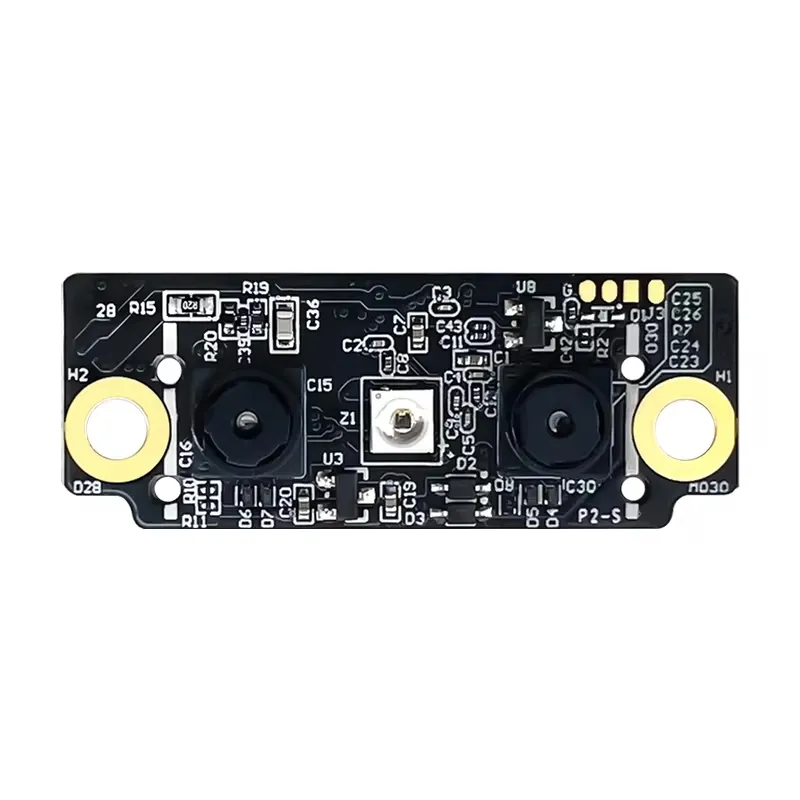
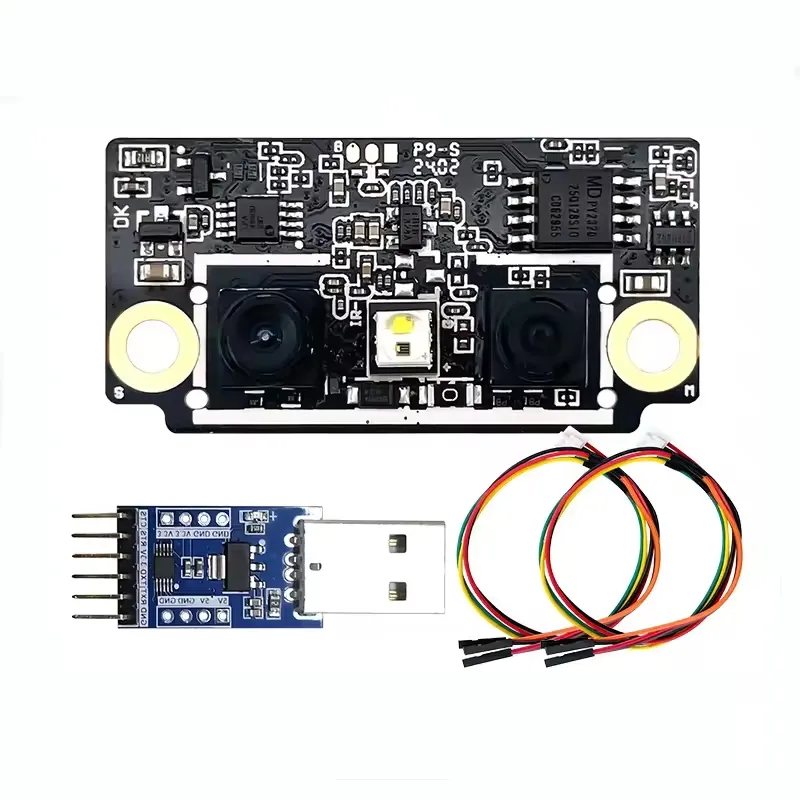
The hlk_fm22x component allows you to use your HLK-FM225 and HLK-FM223 face recognition modules with ESPHome.
Component/Hub
Section titled “Component/Hub”The module can be powered by the 5V output. As the communication with the reader is done using UART (default baud rate is 115200), you need to have an UART bus in your configuration with the rx_pin connected to the reader’s TX and the tx_pin connected to the reader’s RX.
# Example configuration entryhlk_fm22x: on_face_scan_matched: ... on_face_scan_unmatched: ... on_face_scan_invalid: ... on_face_info: ... on_enrollment_done: ... on_enrollment_failed: ...Configuration variables
Section titled “Configuration variables”The configuration is made up of three parts: The central component, optional individual sensors, the optional enrolling binary sensor, and the optional version text sensor.
Base Configuration:
- uart_id (Optional, ID): Manually specify the ID of the UART hub.
- id (Optional, ID): Manually specify the ID used for code generation.
- on_face_scan_matched (Optional, Automation): An action to be performed when an enrolled face is scanned and recognized. See
on_face_scan_matched. - on_face_scan_unmatched (Optional, Automation): An action to be performed when an unknown face is scanned. See
on_face_scan_unmatched. - on_face_scan_invalid (Optional, Automation): An action to be performed when the face scan failed. See
on_face_scan_invalid. - on_face_info (Optional, Automation): An action to be performed when face information is available. See
on_face_info. - on_enrollment_done (Optional, Automation): An action to be performed when a face enrollment step is successful. See
on_enrollment_done. - on_enrollment_failed (Optional, Automation): An action to be performed when a face enrollment step failed. See
on_enrollment_failed.
Binary Sensor
Section titled “Binary Sensor”Configuration variables:
- All options from Binary Sensor.
Sensor
Section titled “Sensor”-
face_count: The number of enrolled faces stored on the module.
-
All options from Sensor.
-
last_face_id: The last matched enrolled face as set by
on_face_scan_matched. -
All options from Sensor.
-
status: The integer representation of the internal status register of the module.
-
All options from Sensor.
Text Sensor
Section titled “Text Sensor”-
version: The module’s firmware version.
-
All options from Text Sensor.
-
last_face_name: The last matched enrolled face as set by
on_face_scan_matched. -
All options from Text Sensor.
on_face_scan_matched Trigger
Section titled “on_face_scan_matched Trigger”With this configuration option you can write complex automations whenever a face scan is matched to an enrolled face.
To use the variables, use a lambda template, the matched face id is available inside that lambda under the variable named face_id and the face name under the variable named name.
on_face_scan_matched: - text_sensor.template.publish: id: face_state state: !lambda 'return "Authorized face " + name + " (" + to_string(face_id) + ")";' # Pushing a tag_scanned event based on face_id - homeassistant.tag_scanned: !lambda |- switch (face_id) { case 0: return "person_a"; case 1: return "person_b"; ... default: return "person_unknown"; }on_face_scan_unmatched Trigger
Section titled “on_face_scan_unmatched Trigger”With this configuration option you can write complex automations whenever an unknown face is scanned.
on_face_scan_unmatched: - text_sensor.template.publish: id: face_state state: "Unauthorized face"on_face_scan_invalid Trigger
Section titled “on_face_scan_invalid Trigger”With this configuration option you can write complex automations whenever a scan fails, e.g. when no face is visible. This is different from on_face_scan_unmatched which is triggered when an unknown face is scanned.
To use the variable, use a lambda template, the error number is available inside that lambda under the variable named error.
on_face_scan_invalid: - text_sensor.template.publish: id: face_state state: !lambda 'return "Invalid face. Error number: " + to_string(error);'on_face_info Trigger
Section titled “on_face_info Trigger”With this configuration option you can write complex automations whenever face information is available.
The module sends face info during enrollment and scanning, and it’s mostly useful for debugging.
To use the variables, use a lambda template, the status is available inside that lambda under the variable named status.
A zero value means normal, and the datasheet contains various error status codes (e.g. 6 for the face being too far).
There are additional values to determine the position (left, top, right, bottom) of the face in the frame as well as its rotation (yaw, pitch, roll).
on_face_info: - text_sensor.template.publish: id: face_info state: !lambda |- switch (status) { case 0: return "Normal"; case 1: return "No face detected"; case 2: return "Face too high"; case 3: return "Face too low"; ... default: return "Unknown status " + to_string(status); }on_enrollment_done Trigger
Section titled “on_enrollment_done Trigger”With this configuration option you can write complex automations whenever an enrollment step for a face is successful.
To use the variables, use a lambda template, the slot number enrolled into is available inside that lambda under the variable named face_id.
Note that the value is only valid after the face has been enrolled in all directions (otherwise it will be -1).
The direction value is a bitmask representing the directions that have been captured so far. A value of 0x1f means all directions have been captured and the face id should be valid.
on_enrollment_done: - text_sensor.template.publish: id: face_state state: !lambda 'return "Enrolled into slot " + to_string(face_id);'on_enrollment_failed Trigger
Section titled “on_enrollment_failed Trigger”With this configuration option you can write complex automations whenever a face failed to be enrolled.
To use the variable, use a lambda template, the error number is available inside that lambda under the variable named error.
on_enrollment_failed: - text_sensor.template.publish: id: face_state state: !lambda 'return "Failed to enroll face. Error: " + to_string(error);'hlk_fm22x.enroll Action
Section titled “hlk_fm22x.enroll Action”Starts the face enrollment process with a name and direction. To successfully enroll a face, you need to successfully and consecutively scan the face from all directions. A failure in one direction will require enrolling the face again from the start.
on_...: then: - hlk_fm22x.enroll: name: "My name" direction: 1 # Update the template text sensor for visual feedback - text_sensor.template.publish: id: face_state state: "Look directly at the camera"Configuration options:
- name (Required, string, templatable): The name associated with the face. Up to 32 ASCII characters.
- direction (Required, int, templatable): The direction to scan the face for.
1for center,2for right,4for left,8for down, and16for up.
hlk_fm22x.scan Action
Section titled “hlk_fm22x.scan Action”Scans and tries to match to an enrolled face. Triggers one of the on_face_scan triggers.
on_...: then: - hlk_fm22x.scan:hlk_fm22x.delete Action
Section titled “hlk_fm22x.delete Action”Removes the enrolled face from the slot number defined.
on_...: then: - hlk_fm22x.delete: face_id: 0 # Shorthand - hlk_fm22x.delete: 0Configuration options:
- face_id (Required, int, templatable): The slot number of the enrolled face to delete.
hlk_fm22x.delete_all Action
Section titled “hlk_fm22x.delete_all Action”Removes all enrolled faces.
on_...: then: - hlk_fm22x.delete_all:hlk_fm22x.reset Action
Section titled “hlk_fm22x.reset Action”Resets the module. Can be useful after a failed enrollment or scan if the module isn’t responding correctly. If this command fails it will mark the module as failed.
on_...: then: - hlk_fm22x.reset:All actions
Section titled “All actions”- id (Optional, ID): Manually specify the ID of the HLK-FM22x reader if you have multiple components.
Test setup
Section titled “Test setup”With the following code you can quickly setup a node and use Home Assistant’s action in the developer tools.
E.g. for calling hlk_fm22x.enroll select the action esphome.test_node_enroll and in action data enter
{ "name": "My name", "direction": 1 }Sample code
Section titled “Sample code”uart: rx_pin: GPIOXX tx_pin: GPIOXX baud_rate: 115200
hlk_fm22x: on_face_scan_invalid: - homeassistant.event: event: esphome.test_node_face_scan_invalid data: error: !lambda 'return error;' on_face_scan_matched: - homeassistant.event: event: esphome.test_node_face_scan_matched data: face_id: !lambda 'return face_id;' name: !lambda 'return name;' on_face_scan_unmatched: - homeassistant.event: event: esphome.test_node_face_scan_unmatched on_face_info: - homeassistant.event: event: esphome.test_node_face_info data: status: !lambda 'return status;' left: !lambda 'return left;' top: !lambda 'return top;' right: !lambda 'return right;' bottom: !lambda 'return bottom;' yaw: !lambda 'return yaw;' pitch: !lambda 'return pitch;' roll: !lambda 'return roll;' on_enrollment_done: - homeassistant.event: event: esphome.test_node_enrollment_done data: face_id: !lambda 'return face_id;' direction: !lambda 'return direction;' on_enrollment_failed: - homeassistant.event: event: esphome.test_node_enrollment_failed data: error: !lambda 'return error;'
api: actions: - action: enroll variables: name: string direction: int then: - hlk_fm22x.enroll: name: !lambda 'return name;' direction: !lambda 'return direction;' - action: scan then: - hlk_fm22x.scan: - action: delete variables: face_id: int then: - hlk_fm22x.delete: face_id: !lambda 'return face_id;' - action: delete_all then: - hlk_fm22x.delete_all: - action: reset then: - hlk_fm22x.reset: